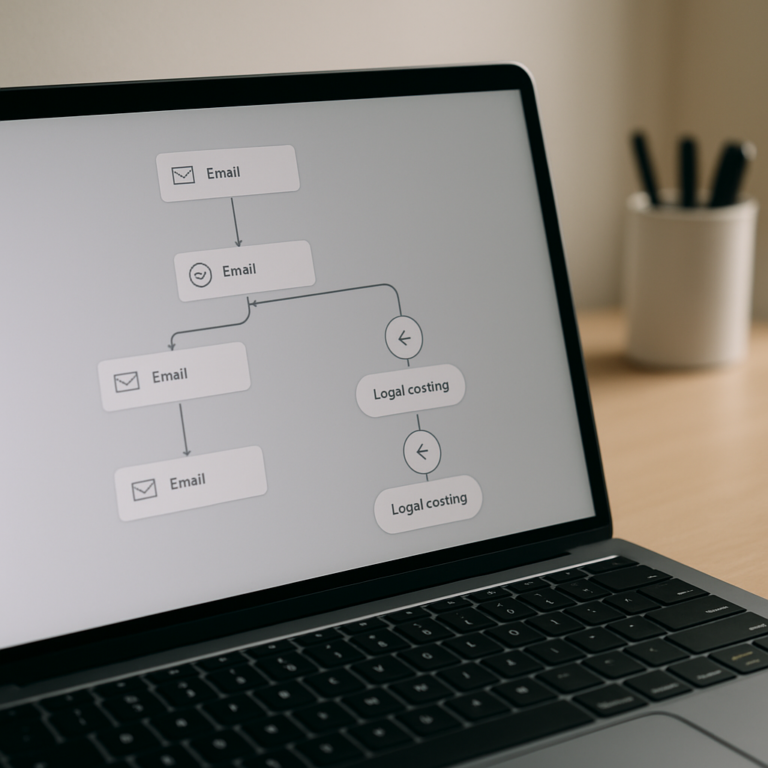

HubSpot sales automation is one of the highest-leverage things you can set up in Sales Hub — and one of the most consistently misconfigured. Most teams either don’t know which automation tool to use for which scenario, or they set up sequences and call it done while leaving deal stage automation and lead routing completely untouched. This post walks you through all four layers of HubSpot sales automation in the order you should build them: lead routing first, outreach sequences second, deal stage workflows third, and workflow-triggered sequence enrollment last.
What HubSpot Sales Automation Actually Includes
When most people say “HubSpot sales automation,” they mean sequences. That’s the most visible tool — and it’s a good one — but it’s only one layer. HubSpot Sales Hub includes four distinct automation capabilities, and they work best when they’re set up together:
- Sequences — timed, one-to-one email and task outreach that stops on reply
- Workflows — conditional, multi-action automations that handle lead routing, deal updates, task creation, and internal notifications
- Deal stage automation — property updates, task creation, and pipeline movement triggered by deal stage changes
- AI-powered features — predictive lead scoring, optimal send-time suggestions, and deal health signals (Sales Hub Pro and above)
According to HubSpot’s own data, 63% of Sales Hub users save at least 4 hours per week per rep using task queues, sequences, and email templates. The teams that save the most aren’t using one of these tools — they’re using all of them as a coordinated stack.
Step 1: Set Up Lead Routing Workflows First
Before a sequence can do anything useful, the right rep needs to own the lead. Lead routing is the foundation. Without it, new contacts either go unassigned or land on the wrong rep’s plate — and both outcomes kill response rates.
Build a lead routing workflow in the Workflows tool (Automation > Workflows > Create workflow). Set the enrollment trigger to Contact property: “Create date is known” or use a form submission trigger. Then use the Rotate records action to distribute leads evenly across your team, or build conditional branches using If/Then logic to route by territory, deal size, or lead source.
At minimum, your lead routing workflow should do four things:
- Set the Contact Owner property via round-robin or conditional branch
- Create a follow-up task assigned to the new owner (“Call within 24 hours”)
- Send an internal notification to the rep with the lead’s key details
- Update the Contact Lifecycle Stage to Lead
This takes about 20 minutes to build and immediately eliminates the “I didn’t know I had a lead” problem. I’ve seen this single workflow cut first-response time from days to under an hour for client teams that had no routing in place.
Step 2: Build Your First Outreach Sequence
HubSpot Sequences (Sales > Sequences) handle one-to-one outreach from a rep’s own inbox. Unlike workflows, sequences are designed to feel personal — they send from the rep’s connected email address and automatically unenroll the contact when they reply or book a meeting.
For a first sequence, keep it to 5–7 steps over 10–14 business days:
- Day 1: Personalized intro email (use CRM tokens for first name and company)
- Day 3: Call task reminder
- Day 5: Follow-up email referencing the original outreach
- Day 8: LinkedIn connection task (when relevant)
- Day 10: Value-add email — a relevant resource, case study, or insight
- Day 12: Break-up email
A few things that consistently get skipped: add call and LinkedIn tasks as sequence steps, not just emails. Pure email sequences get lower engagement than mixed-step sequences. Use HubSpot’s personalization tokens in subject lines and pull the contact’s company name or last activity date to make the message feel less templated.
If you’re on Sales Hub Enterprise, Dynamic Sequences adapt the next step based on whether the contact opened or clicked a previous email. High-engagement contacts get fast-tracked; low-engagement contacts receive a different approach. This is where sequences start to feel like actual intelligent outreach rather than scheduled email blasts.
Step 3: Automate Deal Stage Updates with Workflows
Deal stage automation is where most teams leave serious time on the table. Every time a deal moves stages, there’s a predictable set of things that should happen: tasks get created, properties get stamped, notifications go out. When reps do this manually, it happens inconsistently — or not at all.
Build a deal-based workflow (Workflows > Create workflow > Deal-based) with the enrollment trigger set to Deal stage is [specific stage]. For each stage, define what should auto-execute:
- Demo Scheduled: Create task “Send meeting confirmation and prep doc,” set Close Date based on average sales cycle length
- Proposal Sent: Create task “Follow up if no response in 3 days,” notify sales manager
- Closed Won: Update Contact Lifecycle Stage to Customer, create onboarding task, notify CS team
- Closed Lost: Set a deal loss reason property (required), enroll in a re-engagement workflow after 90 days
For a deeper look at building contact-based and deal-stage workflows across your entire revenue process, the post on 5 HubSpot workflows every B2B team needs covers several patterns that pair directly with what you’re building here.
The goal isn’t to automate everything — it’s to automate the predictable. Reps should spend their time on judgment calls, not on manually moving deals and creating the same task after every demo.
Step 4: Connect Workflows and Sequences (Sales Hub Enterprise)
On Sales Hub Enterprise, you can enroll contacts into sequences directly from a workflow. This means your CRM can automatically trigger personalized outreach from a specific rep’s inbox when the right conditions are met — without the rep manually enrolling anyone.
Common use cases for workflow-triggered sequence enrollment:
- A new inbound lead fills out a form → workflow routes to a rep → workflow also enrolls the contact in that rep’s intro sequence immediately
- A deal goes cold (no activity in 14 days) → workflow enrolls the contact in a re-engagement sequence from the deal owner
- A contact reaches a specific lead score threshold → workflow enrolls them in a high-intent buying sequence
To set this up, add the Enroll in sequence action to your workflow and select the sequence and the rep whose inbox it should send from. The rep must have a connected email inbox in HubSpot, and the contact must not already be enrolled in another active sequence.
HubSpot reports a 48% decrease in average time to close for customers using AI-assisted sales automation — workflow-triggered sequences being one of the core mechanisms driving that result. If you’re on Enterprise and not using this, you’re leaving the most powerful automation capability in Sales Hub completely unused.
Frequently Asked Questions
What is the difference between HubSpot Sequences and Workflows for sales?
Sequences are for one-to-one outreach — they send from a specific rep’s inbox, personalize each message, and automatically stop when the contact replies or books a meeting. Workflows are rules-based automations that run on contacts, deals, companies, or tickets. They handle routing, notifications, property updates, and internal tasks. Sales automation in HubSpot works best when you use both: workflows to route and trigger; sequences to execute the personal outreach.
Do I need Sales Hub Pro or Enterprise for HubSpot sales automation?
Basic sequences are available on Sales Hub Starter, but the full automation stack — including workflow-triggered sequence enrollment, predictive lead scoring, and Dynamic Sequences — requires Pro or Enterprise. Lead routing workflows and deal stage automation are available on Pro. If you want sequences to trigger automatically based on CRM conditions, you need Enterprise. Most growing teams hit the ceiling of Starter within 6 months.
How long does it take to set up HubSpot sales automation?
A basic stack — lead routing workflow, one 5-step sequence, and deal stage automation — takes 2–4 days to configure and test properly. More complex setups with custom lead scoring, multi-team routing logic, and workflow-triggered sequences run 2–4 weeks, especially when combined with a CRM data cleanup. Getting it right the first time takes more planning upfront, but it beats rebuilding everything six months later when the shortcuts break.
Why are my HubSpot sequences not sending?
The three most common causes: the rep’s email inbox is not connected to HubSpot (Sequences requires a connected personal inbox under Settings > General > Connected Apps), the contact is already enrolled in another active sequence, or the sequence has a scheduling window set that excludes the current time or day of week. Check the Sequences tool’s Errors tab for active enrollment conflicts and inspect the sequence schedule settings if emails are delayed or skipped.
Can HubSpot sales automation replace a sales rep?
No — and you shouldn’t try to make it. HubSpot sales automation handles the repetitive, predictable work: routing leads, triggering follow-ups, creating tasks, moving deals through stages, and sending templated outreach. The judgment calls — reading a room in a demo, negotiating terms, knowing when to walk away — still require a rep. The goal of sales automation is to free up rep time for those calls, not to eliminate the need for them.
Ready to Actually Use Your Sales Hub?
Most HubSpot accounts have sequences that never get used and workflows running on logic that made sense two years ago. The automation exists — it just hasn’t been connected. If you want to see what a properly configured sales automation stack looks like for a team your size, check out our HubSpot optimization services.
Already on HubSpot but not getting results from your sales process? That’s almost always a configuration issue, not a HubSpot issue. Let’s audit what’s slowing your team down and fix it.