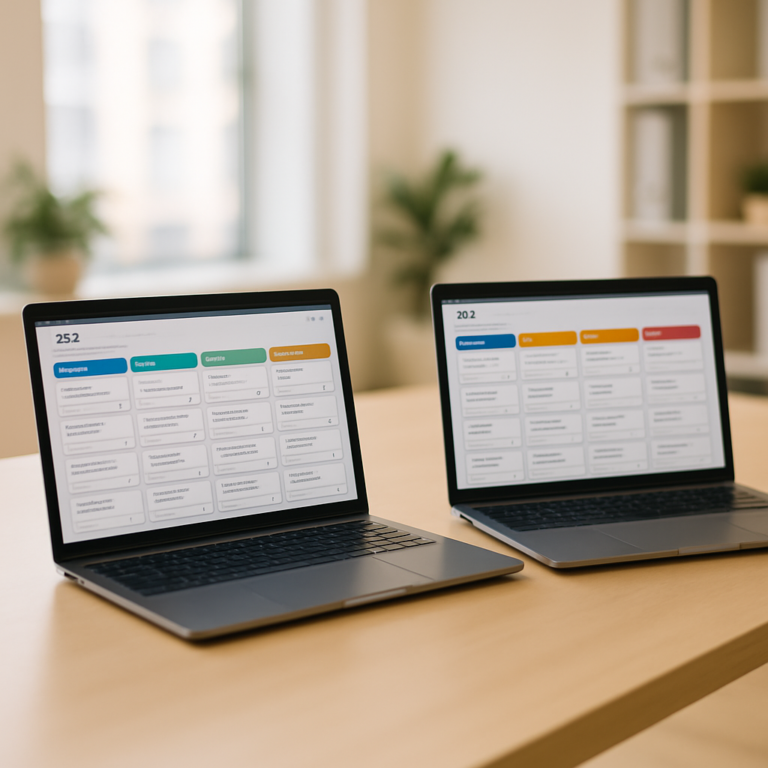

HubSpot reporting and dashboards turn pipeline data into revenue decisions — but only if they’re built right. Most teams I audit have 40+ dashboards nobody opens, the wrong people staring at the wrong numbers, and a pile of stale reports that should have been deleted six months ago. This guide covers the report types you actually need, the dashboard limits to plan around, and the practices that make HubSpot reporting and dashboards drive real action.
If you’re trying to figure out which reports to build first, when to use the Custom Report Builder versus a standard report, or how many dashboards a sales leader actually needs — start here.
What HubSpot Reporting and Dashboards Cover
HubSpot reporting and dashboards live across every hub. Per HubSpot’s documentation on the custom report builder, you can analyze contacts, companies, deals, tickets, custom objects, marketing emails, calls, meetings, and feedback submissions — all in one place.
Five report categories cover 95% of what most B2B teams need:
- Single-object reports — pull data from one object (deals, contacts, companies). Best for “how many deals are in stage X” or “how many contacts came from source Y.”
- Cross-object reports — combine data across objects (deal source by company industry, ticket volume by contact lifecycle stage). Best for revenue ops dashboards.
- Funnel reports — measure conversion between stages of a lifecycle or pipeline. Best for showing where deals are stuck.
- Attribution reports — credit revenue to the marketing or sales touches that drove it. Marketing Hub Pro and Enterprise only.
- Activity reports — surface call, email, and meeting volume by rep. Best for sales leaders managing rep performance.
Standard reports are pre-built and locked. The Custom Report Builder is where the real value lives — that’s where you build the metrics specific to your business.
How to Build Your First HubSpot Custom Report
Skip the standard reports for anything serious. Build custom from day one — it takes 10 minutes longer and you get exactly what you need.
Step 1: Open the Custom Report Builder
Navigate to Reporting > Reports > Create report > Custom Report Builder. You’ll need a Sales, Marketing, Service, or Operations Hub Pro or Enterprise seat to use the full builder.
Step 2: Choose your data sources
Pick the primary object (usually Deals for revenue, Contacts for marketing). Add secondary objects only when you need cross-object analysis — every additional source slows the report down. Three sources max for performance.
Step 3: Configure dimensions and measures
Drag fields onto the X and Y axes. Use measures (count, sum, average) on the Y axis and dimensions (deal stage, contact owner, source) on the X axis. Add filters to narrow the dataset before HubSpot processes it — filtered-down reports run 5-10x faster than full-table scans.
Step 4: Pick the right visualization
Bar charts for category comparisons, line charts for trends over time, funnel charts for stage conversion, and tables for granular data exploration. Pie charts work for 2-5 segments only — anything more becomes unreadable.
Step 5: Save to a dashboard, not the standalone reports library
Reports buried in the standalone library never get viewed. Always pin a new report to a dashboard tied to a specific role or function — sales leader, demand gen, customer success.
Dashboard Limits and How to Plan Around Them
HubSpot enforces hard limits on dashboards and reports. According to HubSpot’s official documentation on managing dashboards, the limits scale with your subscription tier — Free gets 3 dashboards, Starter gets 10, Pro gets 25, Enterprise gets 50.
Three other limits matter:
- Reports per dashboard — capped per tier (Pro typically 30, Enterprise 50). More than 8-12 reports per dashboard hurts scannability anyway.
- Non-table reports — limited to 1,000 unique rows. If you’re showing daily revenue for 5 years, that’s already 1,825 rows. Switch to a weekly or monthly aggregation.
- Break-down by property — capped at 100 distinct values. If you’re breaking deals down by industry and you have 200 industries in your CRM, the report won’t load. Group industries into 10-15 buckets first.
Plan dashboards by role, not by topic. A “Revenue” dashboard with 30 mixed reports is useless. A “Sales Leader Daily Standup” dashboard with 8 focused reports is the difference between data and decisions.
The 5 HubSpot Dashboards Every B2B Team Should Build
Don’t try to build 30 dashboards. These five cover most of what the typical B2B revenue org needs:
- Sales Leader Daily Standup — pipeline value by stage, weekly deal velocity, deals slipping past close date, top 10 deals by amount, rep activity scorecard. Updates first thing every morning.
- Demand Gen Weekly — MQLs by source, MQL-to-SQL conversion rate, campaign ROI, top-performing landing pages, form submission volume vs. last 4 weeks. Reviewed in the Monday marketing standup.
- Sales Rep Personal Dashboard — deals owned, deals closing this month, activities completed this week, rep quota attainment, deals with no activity in 14+ days. Each rep gets their own version with their data filtered in.
- Customer Success / Service — open tickets by priority, average response time, NPS or CSAT trend, churn risk score by account, customer health by segment. Reviewed weekly with CS leadership.
- Executive Revenue Dashboard — closed-won revenue YTD vs. plan, pipeline coverage ratio, win rate trend, average deal size, revenue by source. Reviewed in the monthly leadership meeting.
If you’re already running HubSpot well, you’ve probably outgrown the default dashboards — see our guide to maximizing HubSpot ROI for the metrics that actually justify the investment.
HubSpot Reporting and Dashboards Best Practices
The technical setup is easy. The discipline is hard. These practices separate the dashboards that drive decisions from the dashboards collecting dust.
Audit dashboards every 90 days. Walk through every dashboard with the person who owns it. If they haven’t opened it in 30 days or can’t articulate a decision they made from it, archive it. Most teams cut dashboard count by 50% in the first audit.
Name reports for the question they answer. “Q4 Pipeline” is a useless name. “Deals Forecast to Close in Q4 by Stage” tells you exactly what you’re looking at. Same rule for dashboards.
Set global filters at the dashboard level. If every report on a dashboard should be filtered to “deals owned by my team,” set it once at the top, not 12 times across individual reports. This is where most teams waste hours.
Schedule dashboard delivery to Slack or email. The dashboards people actually use are the ones that come to them, not the ones they have to navigate to. Schedule a Monday 8am email with last week’s revenue dashboard to leadership and you’ll see engagement spike.
Keep dashboards focused on a single role’s needs. The biggest mistake I see is “all-purpose” dashboards built for “everyone.” Everyone is no one. Build for the sales leader, the demand gen manager, the CS director — not a generic audience.
For deeper context on how to structure your CRM data so reports work the way they should, our HubSpot optimization services are built around exactly this kind of cleanup and rebuild work.
Common HubSpot Reporting Mistakes to Avoid
I’ve audited hundreds of HubSpot portals. The same reporting mistakes show up in 80%+ of them.
Mistake 1: Reporting on dirty data. If half your contacts have blank lifecycle stages, your funnel report is meaningless. Clean the data before you build the report — see our guide to fixing duplicate contacts for one of the most common cleanups.
Mistake 2: Tracking activity, not outcomes. “Calls made this week” is an activity metric. “Deals advanced this week” is an outcome metric. Sales leaders who only track activity end up with reps who make 100 calls a week and close zero deals.
Mistake 3: No baseline for comparison. A revenue number means nothing without context. Always show current period vs. prior period or vs. plan. HubSpot makes this trivial with the date comparison setting — use it.
Mistake 4: Mixing leading and lagging indicators. Pipeline created (leading) and revenue closed (lagging) belong on separate dashboards or clearly separated sections. Mixing them creates confusion about what to act on.
Mistake 5: Building reports on standard properties when custom would be cleaner. If you keep manipulating standard “Deal Source” data to fit your business, build a custom property and stop fighting the default schema. According to G2’s HubSpot Marketing Hub reviews, reporting flexibility is one of the top-rated features in HubSpot — but only if you’ve structured your data to take advantage of it.
Frequently Asked Questions
How many dashboards can you have in HubSpot?
The number of dashboards you can have in HubSpot depends on your subscription tier. Free accounts get 3 dashboards, Starter gets 10, Professional gets 25, and Enterprise gets up to 50 dashboards. The number of reports per dashboard also scales with tier — typically 30 reports per dashboard on Pro and 50 on Enterprise. If you’re constantly hitting these limits, you almost certainly have dashboard sprawl and need to consolidate.
What’s the difference between standard reports and custom reports in HubSpot?
Standard reports are pre-built by HubSpot with locked configurations — you can change the date range and a few filters, but the underlying logic is fixed. Custom reports are built in HubSpot’s Custom Report Builder, where you choose the data sources, dimensions, measures, filters, and visualization type. Use standard reports for quick high-level checks. Use custom reports for anything you’ll look at more than once.
Can HubSpot reports pull data from multiple objects?
Yes. HubSpot’s Custom Report Builder supports cross-object reporting across contacts, companies, deals, tickets, custom objects, and engagements. You can build reports like “deal volume by company industry and contact lifecycle stage” or “ticket count by deal stage.” Cross-object reports require a Pro or Enterprise seat in any hub. Performance degrades quickly past 3 data sources, so keep reports focused.
How long does HubSpot take to update report data?
New data typically appears in HubSpot reports within 10-15 minutes of being created or modified. Reports automatically refresh every two hours with newly available data, so a dashboard you open in the morning may not reflect activity from the last 30 minutes. For real-time monitoring, use HubSpot’s activity feed or live records views instead of dashboards.
Do I need a Marketing Hub seat to do attribution reporting?
Yes. Multi-touch revenue attribution reporting requires Marketing Hub Professional or Enterprise. The first-touch and last-touch source properties are available on Free and Starter, but the full attribution model with weighted credit across multiple touchpoints is a Pro/Enterprise feature. For B2B teams running paid campaigns, attribution reporting is one of the highest-value capabilities in the entire HubSpot platform.
Build Dashboards That Actually Drive Revenue
Most HubSpot reporting and dashboards setups I see are 80% noise and 20% signal. Already on HubSpot but not seeing the insights you expected? That’s usually a configuration issue, not a HubSpot issue. Let’s audit what’s slowing you down — we’ll trim the dashboard sprawl, rebuild the metrics that actually move revenue, and set up the reporting cadence your team will actually use.