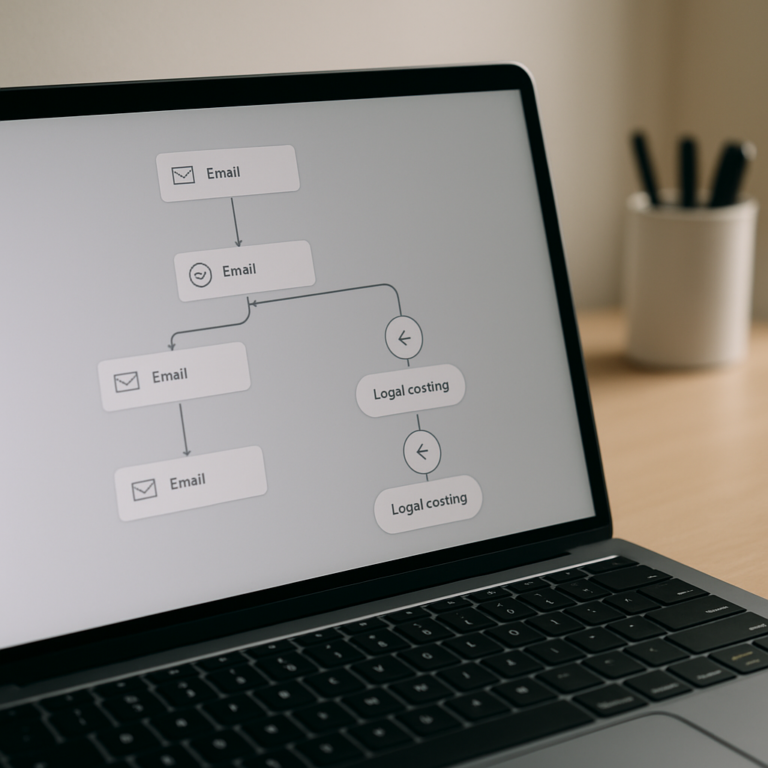

HubSpot pipeline automation is the difference between reps closing deals and reps updating deal stages. When it’s configured properly, the CRM moves records forward, fires off tasks, and nudges stalled deals — without a single manual click. When it’s not, your pipeline becomes a graveyard of forgotten opportunities and outdated properties.
This guide walks through exactly how to set up HubSpot pipeline automation the way I build it for clients: the stage-triggered workflows, the rotting-deal logic, the property sync rules, and the rep notifications that actually get used. By the end, your pipeline will maintain itself.
What HubSpot Pipeline Automation Actually Does
HubSpot pipeline automation lets you trigger actions automatically when a deal, ticket, lead, or custom object record moves between stages. That includes assigning tasks, sending internal notifications, updating properties, rotating reps, enrolling records in workflows, and creating follow-up activities — all driven by stage changes inside the object’s native settings.
There are two layers to get right. The first is built-in stage automation, configured inside Settings → Objects → Deals (or Tickets/Leads) → Pipelines → Automate tab. This is where HubSpot lets you attach actions directly to specific stages. The second is workflow-based automation, built in the Workflows tool using deal, ticket, or lead-based workflows with enrollment triggers tied to stage, amount, close date, or custom property changes.
Most teams only use one of these layers. The right setup uses both — and keeps them from fighting each other.
Why Pipeline Automation Matters More Than Teams Think
Pipeline hygiene is the single biggest predictor of forecast accuracy. According to HubSpot’s own sales data, 81% of sales leaders believe AI and automation can significantly reduce time spent on manual tasks. The reason is simple: reps who spend 40% of their week updating CRM fields aren’t selling.
Clean pipeline data also drives better compensation decisions, forecasting, and coaching. A deal sitting in “Negotiation” for 90 days isn’t in negotiation — it’s dead. Without automation to flag stalled deals, surface rotten opportunities, and enforce stage-entry requirements, your pipeline is lying to you.
HubSpot reports that Sales Hub customers using automated pipeline management close significantly more deals over time than teams relying on manual updates. That isn’t a platform story — it’s a discipline story. Automation enforces the discipline.
Step 1: Clean Up the Pipeline Before You Automate It
Automating a broken pipeline just breaks things faster. Before you configure a single trigger, audit the pipeline itself.
Lock down stage definitions
Each stage needs one crisp exit criterion — a single action that must happen for the deal to move forward. “Discovery complete” is vague. “Budget confirmed in writing and timeline documented in deal notes” is automatable. Write the exit criteria down and require every rep to use the same definitions.
Trim stages to the minimum
Most B2B pipelines need 5–7 stages. More than that means reps will skip stages, guess, or stop updating entirely. I typically use: Qualified, Discovery, Demo/Presentation, Proposal, Negotiation, Closed-Won, Closed-Lost.
Set required properties per stage
Inside the pipeline editor, mark the properties that must be filled before a deal can move into each stage. HubSpot enforces this at the UI level — reps literally cannot advance a deal without the data. This is the single highest-ROI setting in the entire pipeline.
Step 2: Configure Built-In Deal Stage Automation
Once your stages are clean, open Settings → Objects → Deals → Pipelines → select your pipeline → Automate tab. This is where HubSpot pipeline automation starts paying off.
For each stage, configure three things:
- Task creation: Auto-create a task for the deal owner when the record enters the stage. Example: Deal enters “Proposal” → create task “Send proposal within 24 hours, due tomorrow.” This keeps follow-ups consistent without micromanagement.
- Internal notifications: Send a Slack or email notification to the deal owner’s manager when a deal crosses a key stage (like Proposal or Negotiation). This surfaces the pipeline in real time instead of waiting for Monday’s pipeline review.
- Property updates: Auto-update fields like “Last Stage Change Date” or “Sales Stage Timestamp” so you can calculate time-in-stage reporting downstream.
HubSpot’s official deal pipeline automation documentation walks through the exact click path if you need a reference.
Step 3: Build Stall-Detection Workflows
Built-in stage automation handles entering stages. Workflows handle the harder problem: deals that get stuck.
Create a deal-based workflow with this structure:
- Enrollment trigger: Deal stage is any of [Discovery, Demo, Proposal, Negotiation] AND “Time in current stage” is greater than [14 days for Discovery, 10 for Demo, 7 for Proposal, 14 for Negotiation]
- Action 1: Create task for deal owner: “Deal has been in [stage] for [X] days. Advance or disqualify.”
- Action 2: If-then branch: if no stage change in 5 more days → notify manager + set deal property “Rotting Status” to “At Risk”
- Action 3: After 7 more days with no change → auto-move deal to “Closed-Lost” with reason “No response — auto-closed by stall workflow”
This single workflow eliminates the inflated pipeline problem. Reps either advance the deal, disqualify it, or the system does it for them. Pair this with our broader HubSpot workflow automation playbook for the complete automation layer.
Step 4: Automate Lead-to-Deal Conversion
The pipeline doesn’t start at Deal Stage 1 — it starts at lead creation. HubSpot’s Leads object (part of Sales Hub Pro/Enterprise) now supports its own pipeline with automation, and connecting it to the deal pipeline is where most teams drop the ball.
Build a lead pipeline workflow that:
- Auto-qualifies leads based on enrichment data (company size, industry, title) using a lead score threshold
- Moves qualified leads to “SQL” stage and assigns them via round-robin rotation using HubSpot’s owner rotation action
- Triggers creation of an associated Deal record when the lead reaches “SQL” with pre-populated amount, close date, and source
- Archives the lead record (or keeps it associated) once the deal is created, preserving attribution
This is one of the highest-leverage pieces of HubSpot pipeline automation because it removes the lag between marketing handoff and sales engagement — typically 24–72 hours in unautomated setups.
Step 5: Add Rep Behavior Automation
Pipeline automation isn’t just about moving records — it’s about shaping rep behavior. Build these three workflows:
Meeting-booked workflow
Enrollment trigger: Deal stage is “Qualified” AND “Last meeting booked date” is known in the last 14 days. Action: Advance deal to “Discovery” automatically. This enforces the rule that a booked meeting equals a qualified conversation.
Proposal-sent workflow
Enrollment trigger: Custom property “Proposal Sent” is true (set via a deal template button or email integration). Action: Advance deal to “Proposal” stage, create follow-up task for 48 hours later, set “Expected Close Date” to 14 days from today.
Contract-signed workflow
Enrollment trigger: Integration with DocuSign/PandaDoc marks contract as signed. Action: Advance deal to “Closed-Won,” trigger internal notification to finance team, enroll contact in onboarding sequence, create handoff task for Customer Success owner.
These three workflows replace roughly 30 minutes of manual CRM updating per rep per day. For a 10-rep team, that’s 50+ hours a week back.
Step 6: Set Up Forecasting and Reporting Automation
Once the pipeline moves itself, the data needs to flow into reports without manual cleanup. Configure:
- Time-in-stage custom properties: Calculated properties that track how long a deal has sat in each stage. Use these to spot bottlenecks and coach reps.
- Weighted pipeline value: A calculated property that multiplies deal amount by stage probability. Surface this on the deal record and in dashboards instead of raw amount.
- Pipeline velocity dashboard: A report that shows deals won per month divided by average days to close. This is your real sales productivity number.
- Stalled deals report: Auto-filtered report showing deals over a stage-specific day threshold. Push this to managers weekly via scheduled reporting.
Common HubSpot Pipeline Automation Mistakes to Avoid
Three mistakes will break an otherwise-good automation setup:
- Running the same action in built-in stage automation AND a workflow. If the pipeline Automate tab creates a task when a deal enters Proposal, and a workflow also creates a task on the same trigger, reps get two tasks. Pick one layer per action.
- Hard-coding rep names in workflows. Use deal owner as the dynamic assignee, not specific user IDs. Otherwise your workflows break every time someone joins or leaves the team.
- Automating without an exit criteria review. Stage definitions drift over time. Re-audit every 6 months or your automation starts firing on the wrong signals.
Frequently Asked Questions
What’s the difference between pipeline automation and HubSpot workflows?
Pipeline automation refers to the built-in actions you can attach to specific deal, ticket, or lead stages inside Settings → Objects → [Object] → Pipelines → Automate tab. HubSpot workflows are a more powerful tool that runs deal, contact, company, or ticket-based automation based on any trigger — stage, property, form submission, or list membership. Pipeline automation is simpler but limited to stage-based triggers. Workflows handle complex multi-branch logic. Most mature HubSpot setups use both layers together, with pipeline automation handling single-stage actions and workflows handling cross-stage logic.
How long does it take to set up HubSpot pipeline automation?
A clean pipeline automation build takes 2–4 weeks. Week one is pipeline audit and stage redefinition. Week two is building the core stage triggers and stall-detection workflows. Week three is testing with live deals and training reps. Week four is refinement based on what actually fires. Rushed implementations skip steps one and three — and then nobody trusts the automation six weeks later. Budget the full time or expect rework.
Do I need Sales Hub Pro or Enterprise for pipeline automation?
Built-in pipeline stage automation (the Automate tab inside object settings) is available starting on Sales Hub Professional. Full workflow-based pipeline automation requires Sales Hub Professional or Enterprise. Sales Hub Starter has limited automation — you can move deals between stages manually but cannot trigger workflows based on stage changes. If you’re running pipeline automation at scale, Pro is the minimum. Enterprise adds custom objects and more granular permissions, which matters for teams with multiple sales motions.
Can pipeline automation auto-move deals between stages?
Yes. Use a deal-based workflow with a property-change enrollment trigger (for example, “Proposal Sent” property equals true), then use the “Set property value” action to update the deal stage. The same approach works for auto-moving stalled deals to Closed-Lost, auto-advancing deals when a contract is signed via DocuSign integration, or auto-moving deals when a specific meeting type is booked. The key is using a property change — not a time delay alone — as your trigger, so the automation fires on real signals.
How do I prevent HubSpot pipeline automation from creating duplicate tasks?
Two rules. First, never duplicate logic across the pipeline Automate tab and a workflow — pick one layer per action type. Second, use re-enrollment settings deliberately. In workflow settings, “Allow re-enrollment” should only be enabled when you actually want the action to fire multiple times (for example, a stall reminder that should re-fire every 14 days). For one-time actions like “create proposal task,” keep re-enrollment off. Audit your enrollment history monthly to catch runaway workflows before they flood reps with duplicate tasks.
Build Pipeline Automation That Actually Works
The teams that win with HubSpot don’t have better reps — they have better systems around their reps. Pipeline automation is the system that turns a CRM into an operational asset instead of a reporting chore.
If your HubSpot pipeline is full of stale deals, missed tasks, or reps ignoring the CRM entirely, that’s a configuration problem — not a platform problem. Book a call with Your HubSpot Expert and we’ll audit your pipeline automation, fix what’s broken, and build the workflows your team will actually trust. You can also explore our HubSpot optimization services to see how we approach these builds end-to-end.